
MP4 vs MOV: What the Difference Really Is and When You Should Convert

Key Points(5)
- A cousin of mine shoots short videos for his small business on an Android phone and a cheap action camera, and everything comes out as MP4.
- Last month he bought a used MacBook and started editing in iMovie and later in Final Cut Pro.
- Most clips imported fine, but a few from the action camera were acting strange, the preview was lagging and some clips did not show up properly in the timeline.
- He asked me if he needs to buy new software.
- Changing those few clips from mp4 to mov with the converter on Convertio, in the browser, gave him files that opened smoothly in his Apple editing apps, and the quality looked the same as the original.
A cousin of mine shoots short videos for his small business on an Android phone and a cheap action camera, and everything comes out as MP4. Last month he bought a used MacBook and started editing in iMovie and later in Final Cut Pro. Most clips imported fine, but a few from the action camera were acting strange, the preview was lagging and some clips did not show up properly in the timeline. He asked me if he needs to buy new software.
He did not. Changing those few clips from mp4 to mov with the converter on Convertio, in the browser, gave him files that opened smoothly in his Apple editing apps, and the quality looked the same as the original. The reason why this works says a lot about how video files are made, so this guide explains the real difference between MP4 and MOV, what happens during the conversion and when it is worth doing.
Containers and Codecs, the Basic Idea
This is the one thing which makes everything else easy to understand. MP4 and MOV are not the video itself, they are containers. A container is like a box which holds the video track, the audio track and some extra information like subtitles or the date and time of recording.
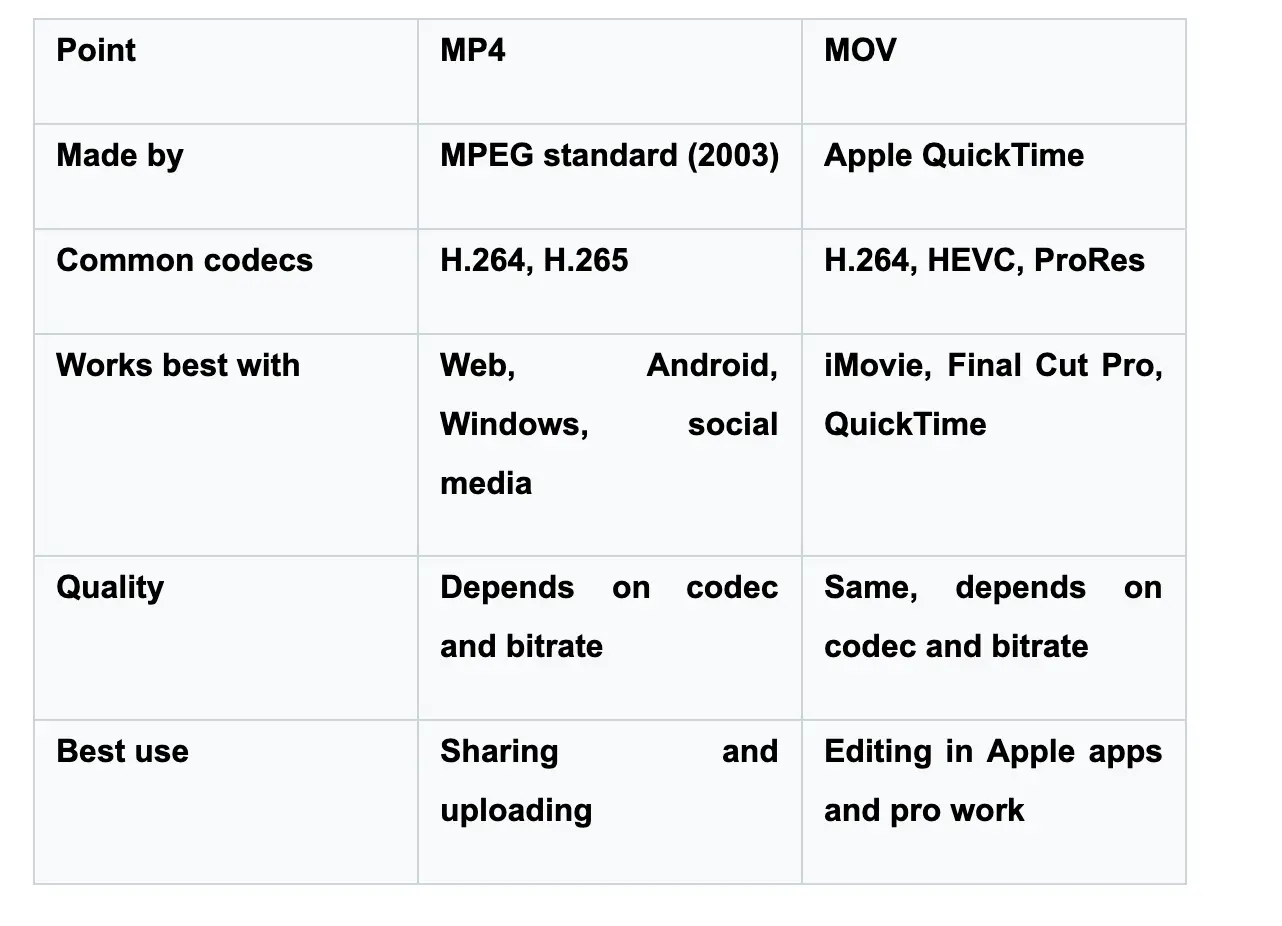
The actual picture inside the box is compressed with a codec, for example H.264 or H.265, which is also called HEVC. The same H.264 video can sit inside an MP4 box or a MOV box. So when people say MP4 has better or worse quality than MOV, it is usually not correct, the quality mostly depends on the codec and the bitrate, not on the box.
Short note: the container is the box, the codec is what is inside it. MP4 and MOV can both hold the same video inside.
Where MOV Comes From
MOV is the format of Apple's QuickTime. According to Wikipedia, the QuickTime File Format is a computer file format used natively by the QuickTime framework, and it specifies a multimedia container file that contains one or more tracks, each holding audio, video, or text data. Interestingly, the ISO approved the QuickTime format as the basis of the MPEG-4 file format, which is why MP4 and MOV are so similar in how they are built.
Because MOV is Apple's own format, it works very naturally in Apple software like QuickTime Player, iMovie and Final Cut Pro, and it is common in professional video work. MP4, on the other hand, is the most widely used format on the internet, on Android phones, on Windows and on social media.
MP4 and MOV Compared
The table below shows the main points side by side.
Does Converting MP4 to MOV Reduce Quality
Not if it is done correctly. Since both containers can hold the same codecs, the video does not need to be compressed again in many cases. On the converter page, the default codec setting is to copy the video from the input file without re-encoding, which means the picture is moved from the MP4 box to the MOV box as it is. In that case, there is no quality loss at all, and the conversion is also faster.
Quality only changes if you choose to re-encode, for example to a different codec, a lower resolution or a lower bitrate. The settings menu has options for codec, resolution, quality and aspect ratio, so if you are not sure, leave the default copy option and the video will stay the same.
Tip: after converting, play the MOV and the original MP4 side by side for a few seconds, especially a part with fast movement. If they look the same, you can use the MOV in your project with confidence.
When Converting Makes Sense
- You edit on a Mac with iMovie or Final Cut Pro and some MP4 clips do not import or play smoothly.
- A client, an editor or a video team asks for MOV files specifically.
- You are mixing clips from different cameras and want all of them in the same container for one project.
- You need to work in an Apple-based workflow where MOV is the standard.
When You Can Simply Keep MP4
For most normal uses, MP4 is already the best choice. If you are uploading to YouTube, Instagram, TikTok or WhatsApp, sharing with people on Windows or Android, or putting a video on a website, keep it as MP4. It plays almost everywhere and the files are usually a bit easier to share. Converting to MOV in these cases does not add anything.
A few practical details about the conversion: the page accepts files up to 1 GB, you can add several videos for batch conversion, and the site says uploaded MP4 videos are removed right after conversion and the MOV files are deleted within 24 hours. For very long recordings above 1 GB, it can help to split the video into parts first.
Final Words
My cousin now converts only the few clips which give him trouble, and the rest of his MP4 files go straight into the timeline. Once you know that MP4 and MOV are just two boxes for the same kind of video, the choice becomes easy. Keep MP4 for sharing and the web, use MOV when an Apple editing app or a client needs it, and keep the codec in copy mode when you convert so the quality stays the same.